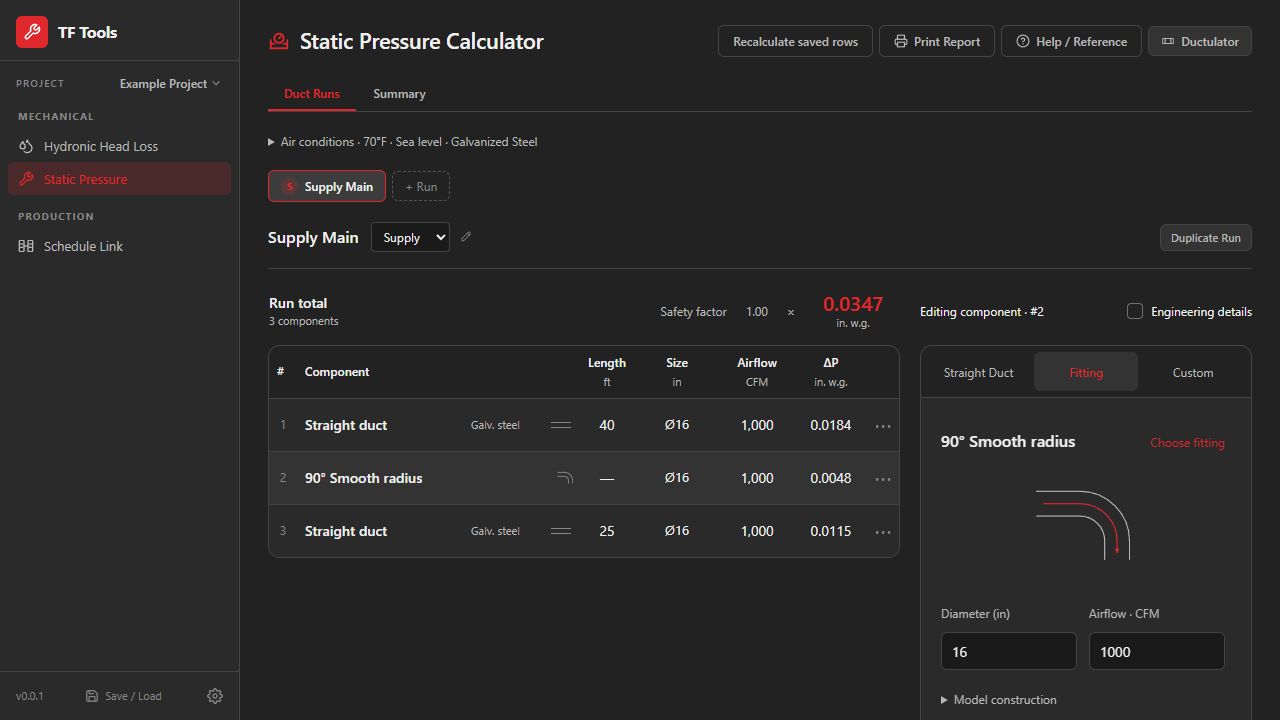
Static pressure, outside air, and louver calculations. Your company dashboard lists the tools enabled for your company.
Static Pressure
Build an air system and calculate pressure losses through ducts, fittings and equipment.
See an example workflow
Supply main
Start with
Enter the airflow and duct dimensions. Add the fittings and equipment along the run.
Review the result
Review each section’s pressure loss and the run total; compare the alternatives before saving a report.
Workflow illustration. Calculate and verify your project’s results in the app.
OA Calculations
Compare room ventilation requirements and track outdoor air by unit.
See an example workflow
Office served by AHU-1
Start with
Add a room, its area and room type, then assign AHU-1. Review the space details and unit method.
Review the result
Compare the room requirements and whole-unit required outdoor air with the provided airflow. Resolve incomplete inputs or shortfalls.
Workflow illustration. Calculate and verify your project’s results in the app.
Louvers
Review airflow, free area, opening sizes, and door undercuts.
See an example workflow
Intake louver LV-1
Start with
Enter airflow, design velocity and product free-area percentage. Fix one opening dimension to size the other.
Review the result
Review the opening size, provided free area and actual velocity, with warnings beside the result.
Workflow illustration. Calculate and verify your project’s results in the app.
Download TF Tools
Your starting point for TF Tools at McParlane & Associates. Sign in with your approved company email to download the Windows app, then use the same email to sign in inside the app.
A few steps from installation to your first project.
Get the Windows App
Open Company Dashboard and verify your approved work email with the eight-digit email code. An assigned app seat is required to download. Close TF Tools and Revit, then run the installer and follow its setup prompts.
Sign In Inside the App
Open TF Tools and select Sign In. Keep the app open while you verify the same company email in the sign-in window. Review any required terms, then return to TF Tools to finish.
Create and Save a Project
Open the project menu, choose New Project, enter a name, and select a calculation tool. Work saves on this computer. Use Save / Load → Save project file to keep a portable copy, or Load project file to open a coworker’s file.
Website sign-in manages your account and downloads. App sign-in connects this computer to that account; projects are not automatically shared between computers.
I did not receive a sign-in code
Check the address you entered, your spam folder and any company email quarantine. Only eligible company accounts receive a code. Use the newest email; codes expire after 10 minutes.
Delivery depends on your company domain and account eligibility. Repeated requests can be temporarily limited; wait before trying again.
My account has no app seat
Sign in to Company Dashboard to review your access. A company administrator can assign an available seat. If the company is full, they must free a seat or request a higher allowance from TF Tools Admin.
Being a company administrator does not automatically assign an app seat.
Windows shows an unknown-publisher warning
The pilot installer is unsigned. Download only through your signed-in TF Tools company account, and check with your company IT team before continuing if a warning appears. Do not disable your computer’s security protections.
The app sign-in window expired
Keep TF Tools open. Return to the app and select Sign In to start a fresh request. Finish using the email and code for that request, then return to the app.
I need help with access or installation
Review your seat and account status in Company Dashboard. For installation issues, use your company’s IT support process. Include the error text, app version and the step that failed. Never include a sign-in code or private project data.